Overview of Chat Interface
Written By Christopher Lee
Last updated About 1 year ago
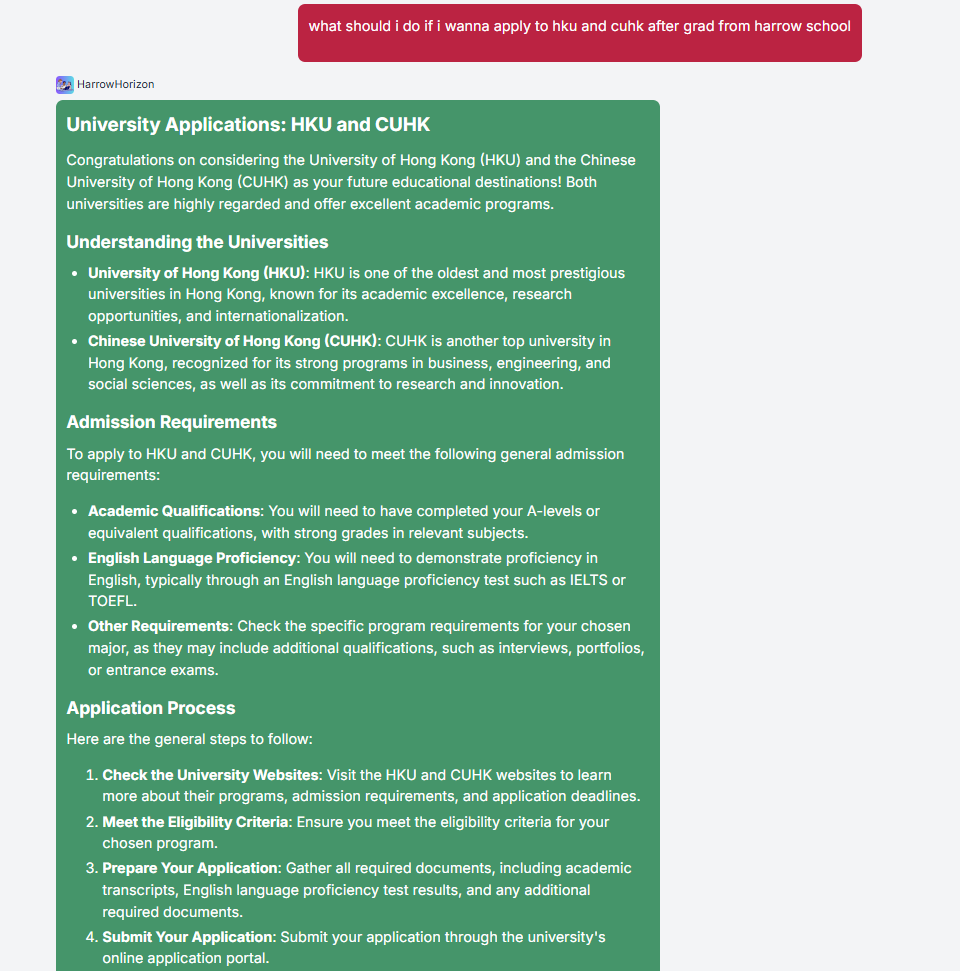
The Student Chat Interface is where learners interact directly with Knobase agents. Designed to be intuitive, accessible, and engaging, this interface supports multimodal input, text-to-speech, and personalized feedback—making it a powerful tool for inquiry-based learning and academic support.
🧭 Key Features of the Chat Interface
1. Chat Window
The main area where students type or speak their questions.
Supports natural language queries like:
“What’s the homework for tomorrow?”
“Can you explain photosynthesis?”
“Is this paragraph okay for my essay?”
2. Upload Button
Allows students to attach:
📄 PDFs (e.g., assignments, rubrics)
🖼️ Images (e.g., worksheets, whiteboard drawings)
📝 Drafts or notes for feedback
Enables multimodal interaction—agents can analyze visual content and respond accordingly.
3. Microphone Icon (Voice Input)
Students can speak their questions instead of typing.
Especially useful for:
Younger learners
SEN students
Multilingual classrooms
4. Speaker Icon (Text-to-Speech)
Press the 🔊 speaker button next to any agent response to hear it read aloud.
Supports auditory learners and improves accessibility.
5. Response Area
Displays the agent’s reply, which may include:
Text explanations
Links to documents in the Knowledge Base
Step-by-step guidance
Feedback based on rubrics or policies
6. Conversation History
Students can scroll up to review previous questions and answers.
Helps with reflection, revision, and continuity in learning.
💡 Use Case Examples
🧒 A Year 4 student asks, “What’s a fraction?” and hears the answer read aloud using TTS.
🧑🎓 A secondary student uploads a draft essay and asks, “Is this ready to submit?”
🧑🏫 A student uploads a photo of a math worksheet and says, “Can you help with question 5?”
Was this helpful?
Still need help? Ask the team