Setting Expiry Dates
Knobase allows you to set expiry dates for uploaded documents, ensuring that outdated materials are automatically flagged or removed from active use. This feature helps maintain the accuracy, relevance, and integrity of agent responses—especially in schools where policies, calendars, and curriculum guides change frequently.
Written By Christopher Lee
Last updated About 1 year ago
🧠 Why Expiry Dates Matter
✅ Prevents agents from referencing outdated or obsolete content
✅ Supports version control for documents like term schedules or assessment rubrics
✅ Reduces manual cleanup and improves Knowledge Base hygiene
✅ Ensures students and staff receive current, reliable information
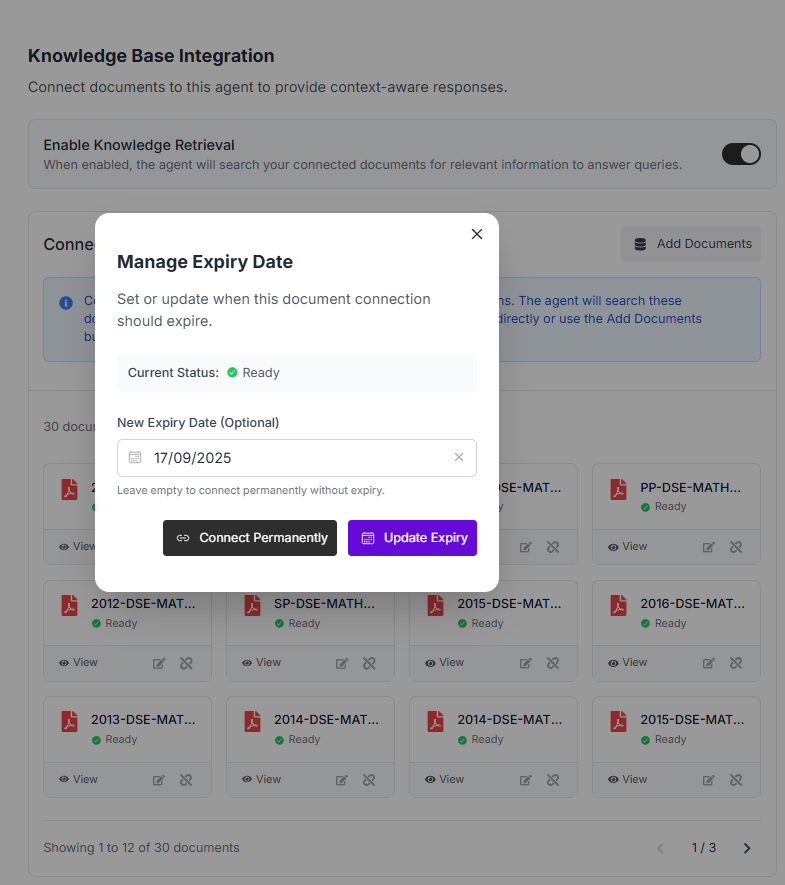
📅 How to Set Expiry Dates
Upload or Select a Document
Go to the Knowledge Base tab
Choose a file or upload a new one
Click “Set Expiry”
A calendar picker will appear
Choose the Expiry Date
Select the date when the document should become inactive
After expiry, the document will be:
Hidden from agent retrieval
Flagged for review or deletion
Save Changes
The expiry date will be logged in the document metadata
🔄 What Happens After Expiry
The document is excluded from RAG-based responses
You’ll receive a notification to update or replace the expired file
Agents referencing that document will either:
Skip it and use other sources
Prompt the user to check with staff for updated information
💡 Use Cases
📅 Event Calendars: Set expiry at the end of the school year
📜 Term-Specific Policies: Expire after the term ends
📝 Draft Rubrics: Expire once finalized versions are uploaded
Was this helpful?
Still need help? Ask the team