Connecting Files to Agents
Once your documents are uploaded and organized in the Knowledge Base, the next step is to connect them to your AI agents. This enables Knobase’s Retrieval-Augmented Generation (RAG) system to pull relevant information from your school’s materials when responding to user queries.
Written By Christopher Lee
Last updated About 1 year ago
🔗 Why Connecting Files Is Essential
✅ Ensures agents respond with school-specific information
✅ Powers accurate answers based on curriculum, policies, and schedules
✅ Supports case-based learning, rubric-aligned feedback, and administrative clarity
✅ Prevents generic or vague responses by grounding the agent in real documents

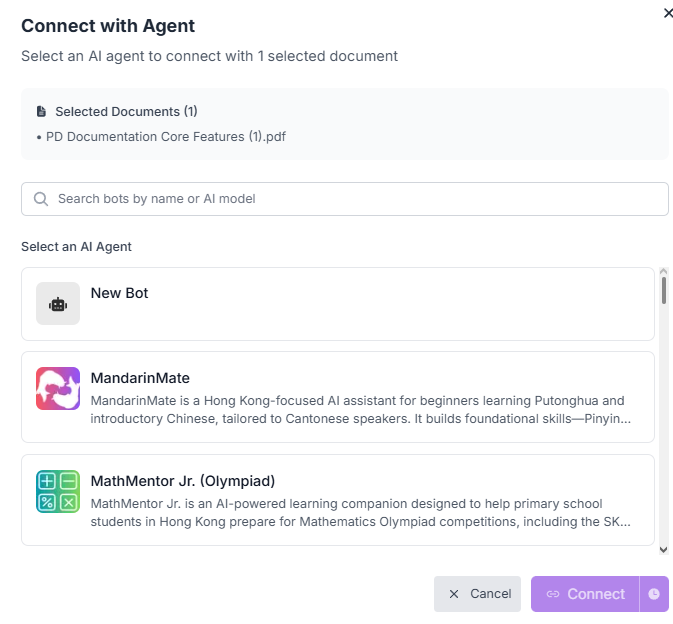
📁 How to Connect Files to an Agent
Go to the AI Agents tab
Select the agent you want to configure
Click “Connect Knowledge” or “Attach Documents”
This opens a panel showing your Knowledge Base folders
Select Relevant Folders or Files
Choose folders that match the agent’s role:
Curriculum agents → “Year 9 Science Curriculum”
Admin agents → “School Policies”, “Event Calendar”
Student support agents → “Homework Guidelines”, “Assessment Rubrics”
Save and Test
Once connected, test the agent by asking questions that reference the uploaded content
Example: “What’s the late submission policy for Year 10?”
🧠 Best Practices
✅ Connect only relevant folders to each agent to avoid confusion
✅ Use descriptive folder names so you can easily identify them during setup
✅ Update connections when documents are revised or new ones are added
✅ Test agent responses regularly to ensure the right documents are being referenced
💡 Example Scenario
Agent: “Homework Helper”
Connected Folder: “Year 10 Homework Policy”Student Query: “What happens if I submit my homework late?”
Agent Response: “According to the Year 10 Homework Policy, assignments submitted more than 3 days late require a parent note and may affect participation grades.”
Was this helpful?
Still need help? Ask the team