Get Started with Knobase
Knobase is designed to be intuitive and educator-friendly. Whether you're exploring AI for the first time or customizing agents for your school, these four steps will help you begin confidently.
Written By Christopher Lee
Last updated About 1 year ago
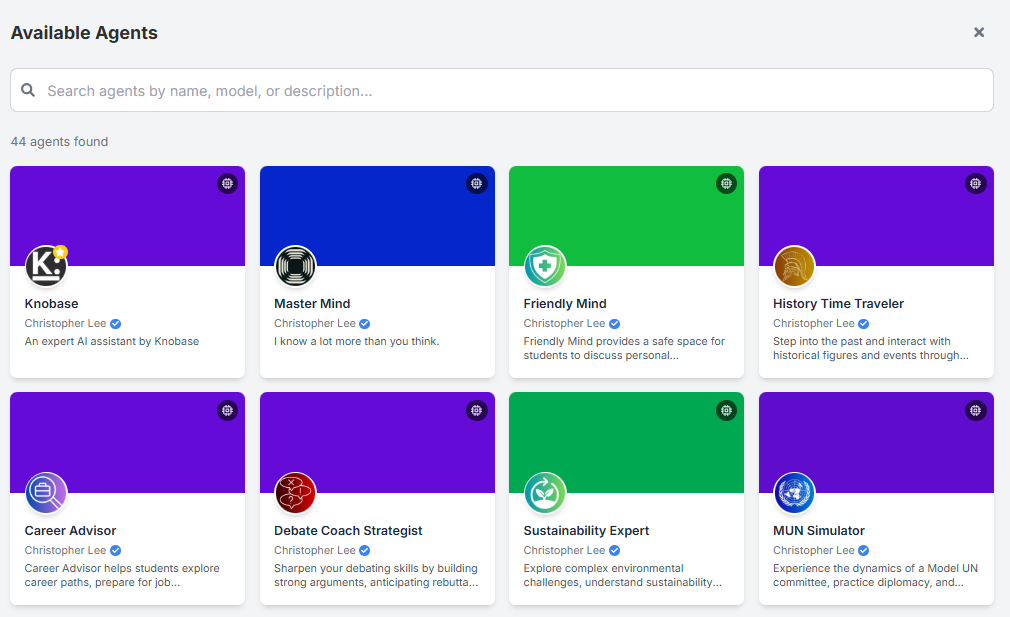
1️⃣ Start a Chat with an Existing Agent
Navigate to the Home or AI Agents tab.
Select an agent from the list (e.g., “THS Helper”, “Math Mentor”).
Click “Start Chat” to simulate real-world queries.
Try asking:
“What’s the school uniform policy?”
“When is the next PTA meeting?”
“What topics are covered in Term 2 Science?”
💡 Use this step to test tone, accuracy, and document referencing.
2️⃣ Upload a School Document to the Knowledge Base
Go to the Knowledge Base tab.
Click “Upload” and select a file (PDF, Word, image).
Organize files into folders by subject or function (e.g., “Curriculum”, “Admin”, “Student Life”).
Connect the folder to your agent to enable Retrieval-Augmented Generation (RAG).
📁 Tip: Keep file names clear and concise, like “Year 10 Homework Policy.pdf”.
3️⃣ Create a Simple Agent with a Name and Description
Go to AI Agents → Click “Create New Agent”.
Choose a descriptive name (e.g., “Science Buddy”, “Campus Guide”).
Write a short description:
“Science Buddy is an AI agent designed to help Year 7 students with science questions and homework in a friendly tone.”
🧠 You can refine the system prompt later for deeper customization.
4️⃣ Explore Analytics to See Student Engagement Trends
Visit the Analytics tab.
View:
Top queries by students
Most active agents
Engagement heatmaps
Common feedback patterns
Use insights to improve agent prompts, add missing documents, or adjus